Roll Your Army Controls
Every input for rolling, building, fighting Brainrots, and managing your roster.
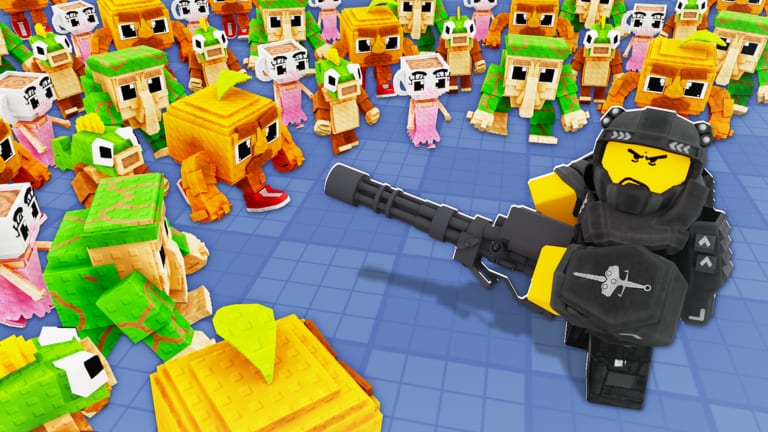
Knowing Roll Your Army controls saves time during Brainrot waves when you need to reposition a troop, open the shop for a Lucky Block, or redeem a new Saturday code without missing combat. Base Guardians! designed the experience for both PC and mobile, so most actions use large on-screen buttons rather than hidden keyboard shortcuts. This guide lists every major input, explains when you use it, and links to deeper systems once you are comfortable with the basics.
Platform overview
Roll Your Army runs on Roblox across PC, mobile, and tablet. PC players click with the mouse for most actions and use WASD or arrow keys to move the camera when the game allows free look. Mobile and tablet players tap and drag to pan the camera, tap units to select them, and use on-screen buttons for rolling, waves, and menus. There is no separate console-only control scheme — console users interact through the Roblox overlay similarly to PC.
If a button does not respond, check whether a wave is paused, a modal shop window is open, or Roblox chat focus stole your keyboard input on PC.
Core gameplay controls
These inputs cover the main loop described in the Getting Started guide: roll troops, place them, and fight Brainrot waves.
| Action | PC | Mobile / Tablet |
|---|---|---|
| Roll for a troop | Click the Roll button | Tap Roll |
| Auto Roll toggle | Click Auto Roll after unlocking in Skill Tree | Tap Auto Roll |
| Select a unit | Click the troop or Brainrot icon | Tap the unit portrait |
| Place a unit | Click a valid build tile | Tap a highlighted tile |
| Pick up / move a placed unit | Click the unit, then click a new tile | Tap unit, then tap destination tile |
| Sell or unequip | Open unit panel → Sell or Unequip | Same via tap menus |
| Start Brainrot wave | Click Start Wave or equivalent | Tap Start Wave |
| Speed up wave (if unlocked) | Click 2x or speed toggle | Tap speed toggle |
Placement tiles glow or highlight when a unit can legally stand there. Invalid tiles stay dim — do not force clicks during lag; wait for the server to confirm your selection.
Camera and navigation
- Pan camera: drag with right mouse button or middle mouse on PC; one-finger drag on mobile.
- Zoom: scroll wheel on PC; pinch on mobile.
- Reset view: some layouts include a recenter button near the minimap — use it after placing units behind structures.
Smooth camera control matters when Brainrots split into multiple lanes. Practice panning quickly to the leak side without canceling unit selection.
Menu and UI buttons
Major menus are always reachable from persistent HUD buttons:
- Shop — buys Lucky Blocks, boosts, and houses the Codes box for promos like
UPDATE4. See codes page for redemption help. - Skill Tree — spends coins on permanent upgrades such as Luck and Auto Roll. Read the Skill Tree guide for purchase order.
- Inventory / Roster — lists owned troops and Brainrots. Cross-check new pulls with the troops tier list and Brainrots tier list.
- Settings — audio, graphics, and Roblox-level preferences.
Opening Shop during an active wave usually pauses or slows combat depending on patch version — finish critical repositioning before browsing Lucky Block prices.
Brainrot equip controls
Equipping Brainrots for passive income uses a separate panel from field placement:
- Open your Brainrot roster from the inventory button.
- Tap a Brainrot, then tap an empty equip slot.
- To swap, select the new Brainrot and confirm replace — unequipped units return to inventory.
Income ticks while you roll or defend if slots are filled. Details on which Brainrots to equip appear in the Brainrot income guide.
Multiplayer and friend luck
Playing with friends in the same server can activate friend luck bonuses once you unlock the relevant Skill Tree node. Invite friends through Roblox party UI — there is no in-game friend code beyond standard Roblox invites. Stack friend luck with Lucky Blocks using the Luck Planner before marathon rolling sessions.
Controls for advanced defense
When waves get harder, you will reposition troops more often:
- Pre-wave setup: pause or start at low speed, place units, then begin at full speed.
- Mid-wave adjustment: select leaking-side melee and pull them forward one tile if the game allows mid-combat moves.
- Post-wave cleanup: sell underperformers, roll replacements, and reopen the base defense guide layout tips before the next tier.
The beat Brainrot waves guide explains which wave numbers punish slow camera work.
Troubleshooting input issues
- Roll button grayed out: you may be out of currency, or Auto Roll is already active without funds.
- Cannot place unit: tile occupied, wrong unit type for that slot, or placement locked during cutscenes.
- Codes box missing: open Shop first — codes are not on the main HUD.
- Mobile mis-taps: zoom in before precise placement; fat-finger errors cost precious wave time.
Rejoin the server if menus freeze after a Saturday update. Check Update 4 notes when patches change UI layout.
Related guides
Master these controls, then deepen your play with Getting Started, Skill Tree upgrades, Lucky Blocks, and roster pages for troops and Brainrots. Efficient inputs plus smart macro decisions beat frantic clicking every time.
Frequently Asked Questions
Quick answers about Roll Your Army Roblox.
Does Roll Your Army have keyboard shortcuts?
Most actions use on-screen buttons. PC players click Roll, Shop, and Skill Tree with the mouse; movement uses standard Roblox camera controls rather than custom hotkeys.
How do I redeem a code on mobile?
Tap Shop, find the Codes section inside the shop panel, type UPDATE4 or another working code, and press Redeem. Codes are case-sensitive.
Can I move troops during a Brainrot wave?
Usually yes, but doing it under pressure is risky. Pause or slow the wave when possible, reposition leak-side units, then resume.
Where is the Auto Roll button?
Auto Roll appears on the main HUD after you purchase it in the Skill Tree. Toggle it on to roll without repeated clicks.
Why cannot I open the Skill Tree?
Some accounts need to clear the first wave or tutorial step before the Skill Tree unlocks. Finish one defense cycle and check again.